How to set up your desk, chair and screen
An adjustable chair and desk only help once they are set up for the person using them. The order to do it in, from seat height to screen and light.
New furniture arrives, everyone sits down, and nobody touches a lever. A month later someone has a stiff neck and blames the chair. Most of the value of an adjustable chair and desk comes from ten minutes spent fitting them to the person who uses them. Work through it in this order, because each step depends on the one before.
Set the chair first
Everything else is measured from the chair, so start there.
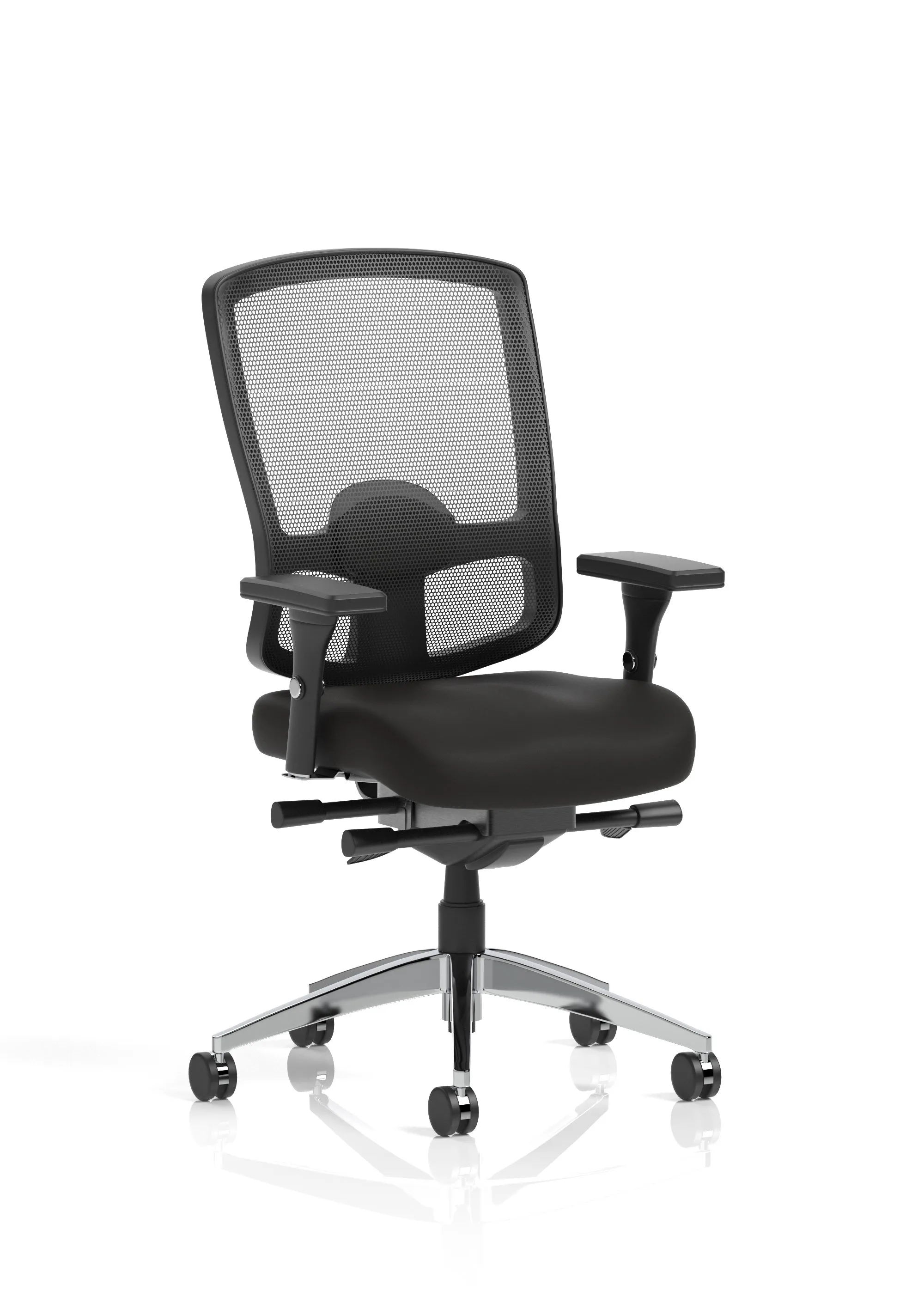
- Seat height. Sit right back and raise or lower the seat until your feet are planted flat and your thighs are roughly level. If your feet no longer reach the floor once the seat suits the desk, use a footrest.
- Back support. Move the backrest, or the lumbar support if the chair has one, until it meets the curve of your lower back.
- Seat depth. With your back against the backrest, the front of the seat should stop a few centimetres short of your knees, so it does not press into your legs. A seat slide lets the seat move forward or back to get this right.
- Arms. Set them so your shoulders stay relaxed and your forearms rest lightly. If they stop you getting close to the desk, lower them or fold them back where the chair allows.
If a chair will not adjust far enough for someone, it is the wrong chair for that person, not something they should put up with. For full days at a screen, the task and operator chairs are the place to start.
Then the desk height
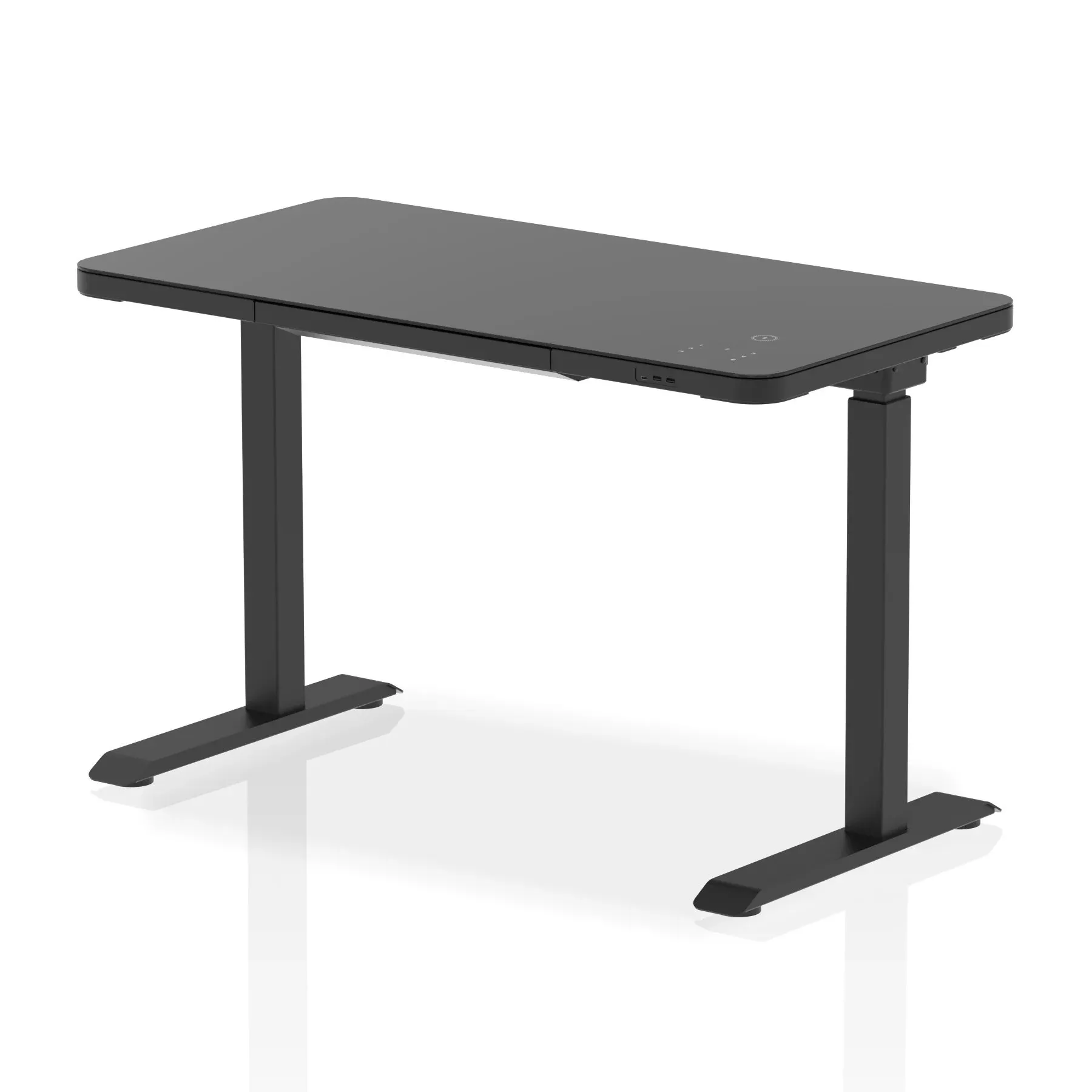
With the chair set, your forearms should sit about level with the desk top when your elbows hang by your sides. On a fixed desk, you get there by adjusting the chair and adding a footrest if needed. On a sit-stand desk, bring the top to your elbows instead, and do the same when you stand: elbows by your sides, forearms level, shoulders down.
Clear the space under the desk as well. Boxes, bins and a pedestal in the legroom push you back from the keyboard and undo the rest of the work.
Screen distance and height
Sit back in the chair and stretch out an arm. The screen should be about that far away. Then adjust the height until the screen's top edge is at, or a little below, eye level. You should be able to read it without tipping your head back or craning forward.
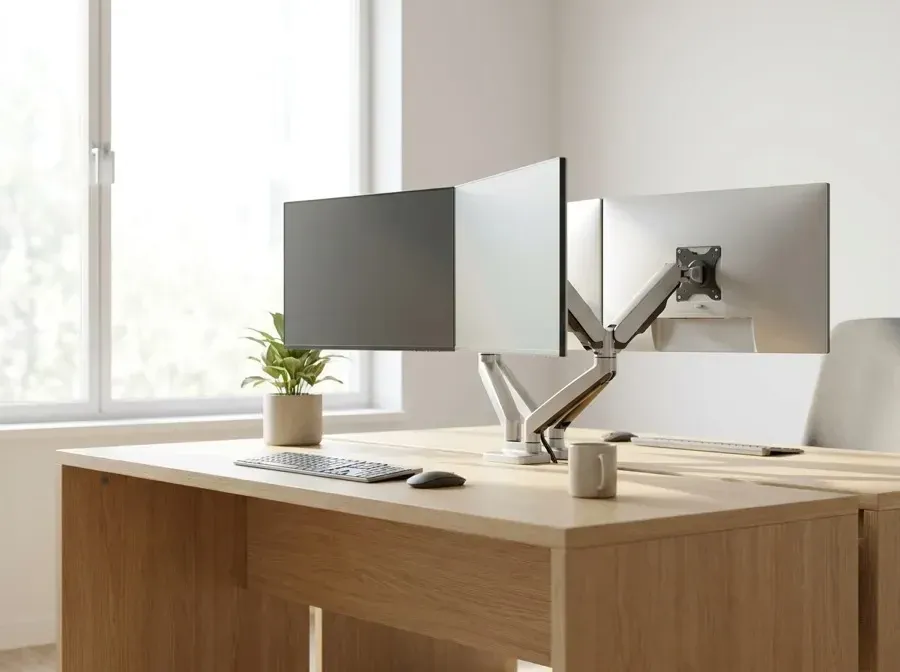
- Two screens. If you use both equally, put the join straight in front of you. If one is the main screen, centre that one and put the second to the side.
- Laptops. A laptop screen sits too low for long spells. Raise it on a cradle or stand and use a separate keyboard and mouse.
- Varifocals. People who wear varifocal or bifocal glasses often get on better with a slightly lower screen.
A monitor arm makes all of this easier. It sets height, distance and tilt precisely, swings the screen out of the way when you need the desk, and follows you up and down on a sit-stand desk. Arms, laptop cradles and PC holders are in monitor arms and desk accessories.
Keyboard and mouse
Keep the keyboard straight in front of you, with a little room in front of it to rest your hands between bursts of typing. Keep the mouse close, right beside the keyboard, so you are not reaching sideways all day. Try to keep your wrists fairly straight rather than bent up or down.
Light and glare
Glare is tiring on the eyes, and easy to fix. Where you can, put screens side-on to windows, rather than facing a window or with one directly behind. Use blinds to control bright sun, and tilt the screen a little to lose reflections from the ceiling lights.
Scottish offices have their own version of this: low winter sun straight across the desk in the morning, then dark by the middle of the afternoon. A setup that works in June may not work in December, so check it again when the clocks change. Good general lighting, plus a desk lamp for paperwork, covers both ends of the year.
Move about, and take breaks
Even a well set up desk is not meant to be sat at for hours without a pause. Short, frequent breaks and changes of task do more good than one long break. A sit-stand desk helps, as long as people actually change position through the day rather than leaving it at one height. For long spells standing on a hard floor, an anti-fatigue mat is worth having: see ergonomic accessories.
If you employ people
The Display Screen Equipment Regulations 1992, known as the DSE Regulations, give UK employers duties towards staff who use a screen every day for an hour or more at a stretch. In outline, that means assessing their workstations and reducing the risks found, planning breaks or changes of activity, giving training and information, and arranging an eye test when a user asks for one.
The duties cover people working from home as well as in the office. The Health and Safety Executive's website has free guidance on this, including a checklist for assessing a workstation. This is a short summary, not legal advice, so check the HSE guidance for your own situation.
Ask us about a particular person
If you are not sure which chair or desk suits a particular person, call or email us with their height and how they work, and we will suggest some options. Typical seat and desk heights are on the size guide.